Quick answer: Start with the phone’s Storage page, then remove downloaded videos, duplicate files, old screen recordings and offline content you recognise. Back up important photos and chats before deleting anything. Do not tap “Clear storage” for an app unless you understand that it can erase the app’s local data.
Why low storage can make a phone misbehave
A phone needs free space for updates, temporary files, camera processing and normal app operation. Android Help notes that devices can start having issues when very little storage remains free. The exact amount needed varies, so focus on creating a comfortable buffer rather than freeing only a few megabytes.
The safest cleanup order
1. Open the Storage page
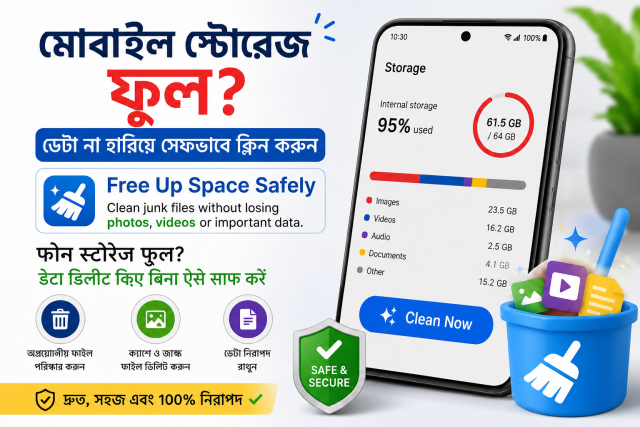
Go to Settings and search for Storage. Identify which category is largest: photos, videos, apps, downloads, documents or system data. Menu names vary by manufacturer.
2. Check Downloads
- Old PDF forms and duplicate documents.
- Videos downloaded from a browser.
- APK installation files you no longer need.
- Images saved several times from messages.
- Large ZIP files after their contents were extracted.
3. Remove offline media inside the original app
Streaming and music apps can keep downloaded films, episodes, playlists and maps. Delete them from that app’s Downloads section so the app updates its own records correctly.
4. Review camera videos and screen recordings
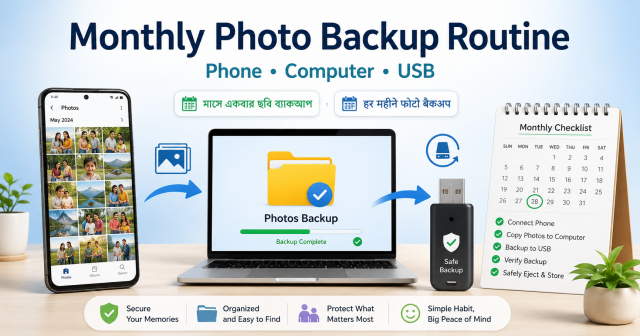
Long videos and screen recordings often use more space than photos. Copy important files to a computer or trusted backup, open the copy to verify it, and only then delete the phone copy.
5. Uninstall or archive unused apps
Apps you no longer use can be uninstalled. Supported Android devices may also offer app archiving, which removes much of an app while keeping information needed to restore it later. Check whether important app data is backed up first.
6. Clear cache carefully
| Action | What usually happens | Main caution |
|---|---|---|
| Clear cache | Removes temporary app files | The app may reload data and cache can grow again |
| Clear storage / clear data | Resets local app data | Can sign you out or erase downloads, settings and unsynced data |
| Uninstall | Removes the app and local data | Confirm backup and login details first |
| Delete photo after cloud backup | Removes the phone copy | Verify backup completed and understand cloud-sync behaviour |
Photos and cloud backup: verify before deleting
- Open the backup app and confirm backup status.
- Open several recent photos from another device or web account where possible.
- Check that the correct account is signed in.
- Understand whether deleting inside the gallery also deletes the cloud copy.
- Use the backup service’s official “free up space” feature when available.
Chat apps need separate care
Messages, photos and videos may be stored inside a chat app’s own folders or backup system. Use that app’s storage-management screen. Confirm the chat backup date and account before removing or reinstalling the app. Avoid generic cleaner apps that delete folders without explaining what they contain.
What not to delete
- Folders or files you do not recognise merely because they are large.
- System files or app databases.
- The only copy of identity documents, invoices or family photos.
- Authenticator or password-manager data before confirming backup and recovery.
- Work files controlled by an employer or school.
- A chat app’s data before confirming backup and login access.
Do cleaner or booster apps help?
A reputable file manager can help you find large or duplicate files, but an app cannot create storage without deleting, compressing or moving something. Be cautious when a cleaner requests broad access, shows alarming warnings, displays excessive ads or promises to make an old phone “200% faster.”
A monthly five-minute habit
- Delete failed and duplicate downloads.
- Move important videos to a verified backup.
- Remove offline films you finished watching.
- Review unused apps.
- Check that photo and chat backups completed.
Frequently asked questions
Is it safe to clear cache?
It normally removes temporary files, but the app may need to download them again. Read the button carefully so you do not choose clear storage or clear data by mistake.
Why is “System” storage so large?
System categories can include the operating system, updates and files grouped differently by the manufacturer. Restart, update the phone and use official storage tools; do not try to delete protected system folders.
Will an SD card make every phone faster?
No. Many phones have no card slot, and a card is generally slower than internal storage. It can be useful for supported photos and media when selected correctly.
Should I factory reset a full phone?
A reset is a last resort. Back up and verify everything first, know your account passwords, and try targeted cleanup before erasing the device.