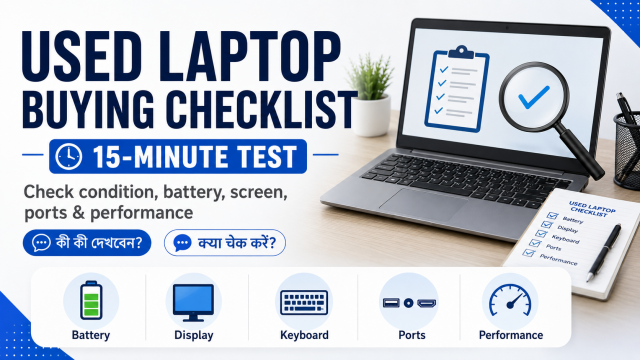
Quick answer: Do not pay after checking only that the laptop turns on. Spend 15 minutes testing the exact model, screen, keyboard, ports, Wi-Fi, webcam, sound, battery, charger and ownership details.
Affiliate disclosure: Some links in this guide may be paid affiliate links.
If you buy through them, JoLLy KA Tech may earn a commission at no extra cost to you.
Recommendations should be based on suitability, safety, warranty and value—not commission.
As an Amazon Associate I earn from qualifying purchases.
Before meeting the seller
Ask for the exact model number, processor, RAM, storage, charger type, age, repair history and reason for sale. Request clear photos of the screen, keyboard, bottom label and charger. Do not send a deposit merely to “reserve” a common used laptop.
The 15-minute test
Minute 0–2: Check the body and ownership
- Look for cracks, missing screws, bent hinges and liquid marks.
- Open and close the lid slowly. The hinge should not separate from the body.
- Check that the serial or service tag has not been removed.
- Ask for the original invoice or a written sale receipt when available.
- Confirm that the laptop is not locked to a company, school or previous owner’s account.
Minute 2–4: Confirm the real specifications
On Windows, open Settings → System → About. Confirm the processor and installed RAM. Then open Settings → System → Storage to check storage capacity.
Do not rely only on a sticker near the keyboard. Parts may have been changed after the laptop was manufactured.
Minute 4–6: Test the screen
- Open a white image and look for dark spots, lines or unusual colour.
- Open a black image and check for bright stuck pixels or strong light leakage.
- Move the lid gently and watch for flickering.
- Change brightness using the keyboard controls.
Minute 6–8: Test keyboard and touchpad
Open a text editor and press every letter, number, arrow and function key. Test both touchpad buttons, scrolling and multi-finger gestures. A single failed key can be expensive or inconvenient to repair on some models.
Minute 8–10: Test ports and wireless connection
- Connect a known USB drive to every USB port.
- Test the headphone socket if you use one.
- Connect to Wi-Fi and open several pages.
- Switch Bluetooth on and check that it discovers a nearby device.
- Test the charging port for a loose connection.
Minute 10–12: Test camera, microphone and speakers
Open the camera app. Record a short video while speaking, then play it back. This checks the camera, microphone and speakers together. Do not record other people without permission.
Minute 12–14: Check battery and charger
- Unplug the charger and watch whether the laptop shuts down immediately.
- Check whether the battery percentage changes abnormally.
- Inspect the charger cable, pins and connector for damage.
- Confirm that the charger rating is suitable for the laptop model.
A short test cannot prove full battery life. Treat the seller’s battery claim as unverified unless you perform a longer test or review a battery report.
Minute 14–15: Restart before paying
Restart the laptop. Make sure it boots normally and does not ask for an unknown BIOS, organisation or previous-owner password. Confirm what operating system and licence, if any, are included in the sale.
Reasons to walk away
- The seller refuses a basic test.
- The serial number is removed or ownership explanation is unclear.
- The laptop is already signed into an unknown company or school account.
- The hinge separates from the body.
- The charger sparks, disconnects or has exposed wire.
- Specifications do not match the listing.
- The price is unusually low and the seller pressures you to pay immediately.
What matters more than “i3, i5 or i7”?
The processor generation, RAM, storage type, battery condition, screen, keyboard and repairability all matter. A newer mid-range processor with an SSD may feel much faster in daily work than an older high-tier processor with a slow hard drive.
Always compare the complete model and generation, not only the processor family name.
Questions to ask the seller
- Has the motherboard, display, keyboard or battery been repaired?
- Does every port work?
- How long does the battery last in normal use?
- Is the charger original or a compatible replacement?
- Is any password, account or device-management lock active?
- Can the seller provide a receipt with model, serial, amount and date?
Frequently asked questions
How old is too old for a used laptop?
Age alone is not enough. Check whether the hardware supports the software and security updates you need, whether replacement parts are available and whether the battery and storage are healthy.
Should I buy a laptop without a battery?
Only if you understand the limitation and the price reflects it. A laptop that works only while plugged in is less portable and can shut down during a power cut.
Is a refurbished laptop the same as a used laptop?
No. “Refurbished” should describe inspection, repair and testing, but standards vary by seller. Ask what was replaced, who performed the work and what warranty is provided.
Should I pay before the laptop is reset?
No. Confirm that personal accounts and device-management locks can be removed and that you can complete setup legally as the new owner.