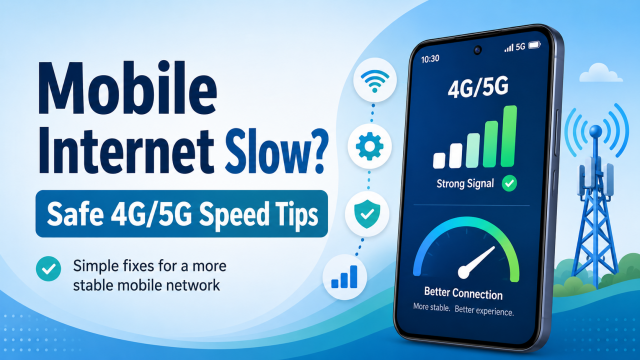
A slow mobile internet connection can make videos buffer, payments fail, downloads stop and websites take too long to open.
The good news is that you usually do not need a “network booster” app, secret dialling code or modified APN setting. Start with simple checks such as verifying your data plan, refreshing the connection, moving to a stronger-signal location and checking the phone’s network mode.
These steps can help users of Jio, Airtel, Vodafone Idea (Vi), BSNL and other mobile networks. Menu names may differ slightly between Samsung, Xiaomi, Realme, Vivo, Oppo, Motorola, OnePlus, Nothing, iPhone and other devices.
Quick answer: Turn Airplane mode on for about 10 seconds, turn it off, restart the phone, move near a window and confirm that the correct SIM is selected for mobile data. Then check your plan, data balance and preferred network mode.
Why is mobile internet sometimes slow?
Mobile data speed is not controlled by only one phone setting. It can change because of:
- Weak indoor signal
- Distance from the mobile tower
- Heavy network use in your area
- An expired plan or exhausted high-speed data
- Incorrect SIM or mobile-data selection
- Background downloads and app updates
- Temporary operator problems
- Old phone software or carrier settings
- A damaged or ageing SIM
- Limited network-band support in the phone
A “full signal” icon also does not guarantee that every website or app will load quickly. The app’s own server, your data plan and local network traffic can affect the experience.
1. Check whether the problem affects everything
Before changing settings, open two or three different services.
- Open a normal website.
- Play a video at a moderate quality.
- Try another app.
- Run a trusted speed test.
When only one app or website is slow, the problem may be with that service rather than your mobile network.
Avoid running repeated speed tests for several minutes because each test can consume a noticeable amount of mobile data.
2. Check your active plan and remaining data
Open your network provider’s official app or website and confirm:
- Your plan is active.
- The plan’s validity has not expired.
- High-speed data is still available.
- No data add-on is waiting to be activated.
- There is no unpaid postpaid bill or account restriction.
Some plans continue providing internet after the high-speed quota is exhausted, but at a reduced speed.
For Jio users, open the MyJio app and check the plan and data balance before changing phone settings.
3. Refresh the connection with Airplane mode
This is one of the easiest ways to make the phone reconnect to the mobile network.
- Open Quick Settings or Control Centre.
- Turn Airplane mode on.
- Wait approximately 10 seconds.
- Turn Airplane mode off.
- Wait for the 4G, LTE or 5G symbol to return.
Do not repeatedly toggle it every few seconds. One proper refresh is enough for testing.
4. Restart the phone
Restarting can clear a temporary connection problem without deleting personal files or changing important settings.
After restarting:
- Keep Wi-Fi turned off while testing mobile data.
- Wait until the network symbol appears.
- Open a lightweight website first.
- Test the same location again.
5. Move to a location with a stronger signal
Walls, reinforced concrete, metal roofing, lifts and underground rooms can weaken mobile signals.
Try moving:
- Near a window
- To another room
- To an upper floor
- Outside the building
- Away from large metal objects
Watch whether the number of signal bars changes. Do not climb onto a roof or enter an unsafe location just to get a better signal.
6. Select the correct SIM for mobile data
Dual-SIM phones can accidentally use the wrong SIM for internet access.
On most Android phones:
- Open Settings.
- Select SIM cards, Mobile network or Connections.
- Find Mobile data or Preferred SIM for data.
- Select the SIM that has an active data plan.
For testing, you can temporarily disable the unused SIM and check whether the connection becomes more stable. Turn it back on after the test.
On iPhone, open Settings → Mobile Service or Cellular → Mobile Data, then confirm the correct mobile line.
7. Use the appropriate 4G/5G network mode
On Android, open a path similar to:
Settings → SIM cards or Mobile network → Preferred network type
Select an option such as:
- 5G/4G/3G/2G Auto
- 5G preferred
- 4G/3G/2G Auto
- LTE/3G/2G Auto
The exact wording depends on your phone.
When 5G keeps disconnecting
Where 5G coverage is weak, the phone may repeatedly move between 5G and 4G. Temporarily selecting 4G/LTE preferred can sometimes provide a more consistent connection.
This does not make 4G faster than strong 5G. It only helps determine whether network switching is causing instability.
Avoid hidden engineering menus and permanent band-locking unless an authorised service professional specifically instructs you. Incorrect settings can affect calls, coverage, battery usage or roaming.
8. Pause background downloads and updates
One app can use a large part of the available connection without being visible on the screen.
Check for:
- Play Store or App Store updates
- Cloud photo backup
- WhatsApp media backup
- Large system updates
- Offline video downloads
- File transfers
- Another device connected through your hotspot
Pause unnecessary downloads and test again.
On Android, the relevant menu is usually Settings → Network and internet → Data usage.
On iPhone, open Settings → Mobile Service or Cellular.
9. Check data limits and app restrictions
A phone-level data limit may stop or restrict mobile internet even when the SIM plan still has data.
On Android, look under:
Settings → Network and internet → Data usage → Data warning and limit
Check that:
- A very low data limit has not been set.
- The affected app is allowed to use mobile data.
- Battery Saver is not heavily restricting an important app.
- Data Saver is not blocking necessary background activity.
On iPhone, open Settings → Mobile Service or Cellular. Scroll down and confirm that mobile data is enabled for the affected app.
10. Reset the APN to the operator default
An APN tells the phone how to connect to the operator’s mobile-data service.
Normally, the correct APN is configured automatically when the SIM is inserted. Do not add random values found in videos, comments or old blog posts.
On many Android devices:
- Open Settings.
- Select Mobile network.
- Select your SIM.
- Open Access Point Names.
- Open the menu.
- Select Reset to default.
- Restart the phone.
Only enter an APN manually when your mobile operator’s official support team provides the values for your exact service.
Changing the server, proxy, port, MCC or MNC does not create extra tower capacity. An incorrect APN can stop mobile data, hotspot access or multimedia messaging from working.
11. Update the phone and carrier settings
Install stable system updates supplied by the phone manufacturer. Updates can include modem fixes, security patches and compatibility improvements.
On Android:
Settings → System or Software update → Check for updates
On iPhone:
Settings → General → Software Update
iPhone users should also open Settings → General → About and wait briefly. A carrier-settings update may appear when one is available.
Use a sufficiently charged battery and a reliable connection while installing major updates.
12. Remove an unnecessary VPN while testing
A VPN can be useful for privacy or securely accessing a private network, but it is not a guaranteed mobile-speed booster.
- Disconnect the VPN.
- Close the VPN app.
- Test the same website or service again.
- Reconnect it only when you need it.
Do not install unknown VPN applications that request unnecessary permissions or promise “double speed,” “unlimited free data” or guaranteed lower ping.
13. Reset network settings as a last phone-side step
Use this after trying the simpler methods.
Android
The location varies, but it is usually similar to:
Settings → System → Reset options → Reset Wi-Fi, mobile and Bluetooth
iPhone
Open:
Settings → General → Transfer or Reset iPhone → Reset → Reset Network Settings
This does not normally erase photos, videos, contacts or apps. However, it can remove saved Wi-Fi networks and passwords, VPN configurations and manually configured APN settings.
Write down important Wi-Fi passwords before continuing.
Important: Do not select Erase All Content and Settings. That is a different option that deletes personal data.
14. Test the SIM and report the problem properly
To identify whether the problem is caused by the phone, SIM or local network:
- Test your SIM in another compatible phone.
- Test another operator’s SIM in your phone.
- Compare performance indoors and outdoors.
- Check at a different time of day.
- Ask a nearby user of the same operator whether they have the same issue.
When contacting customer support, provide:
- Your area and PIN code
- The phone model
- Whether the problem occurs indoors or outdoors
- The approximate date and time
- Signal bars and displayed network type
- Whether calls and SMS are also affected
- Two or three recent speed-test results
Methods you should avoid
Avoid using the following as general “speed boosting” tricks:
- Secret dial codes copied from old videos
- Engineering-mode or band-locking apps
- Random APN, MCC or MNC values
- Adding Google or another website as the APN server
- Unknown “4G booster” or “RAM cleaner” applications
- VPN apps promising guaranteed speed increases
- Repeated factory resets
- Rooting the phone only to change network bands
- Buying an unverified signal repeater without operator guidance
These methods may fail, introduce privacy risks, break normal connectivity or create a new problem without improving the original connection.
Can a new product improve mobile internet?
A product should be recommended only when it solves an identified problem. No accessory can force a congested tower to provide unlimited speed.
A newer 4G/5G phone
A newer phone may help when the existing handset does not support the network technologies or frequency bands used by your operator.
Before buying, check:
- Supported Indian 4G and 5G bands
- VoLTE and Wi-Fi Calling support
- Software-update policy
- Battery capacity
- Seller reputation
- Warranty and service availability
- Return and replacement conditions
Shopping option: Compare compatible 5G phones from trusted sellers and confirm network-band support before purchasing.
Portable 4G/5G hotspot
A portable hotspot can be useful for connecting a laptop or several devices while travelling. It will not automatically fix weak coverage, so confirm SIM and band compatibility first.
Shopping option: Compare unlocked portable hotspots and SIM routers that support your operator.
Power bank for hotspot use
Hotspot use can consume battery quickly. A suitable power bank can help during travel, power cuts or long work sessions.
Check capacity, charging output, safety certification, warranty and whether a charging cable is included.
Shopping option: Compare trusted power banks based on safety, warranty and actual charging needs.
Affiliate disclosure: Some product links on this page may be affiliate links. We may receive a small commission when a qualifying purchase is made through those links, without increasing the buyer’s price. Product selection should always be based on compatibility, need, warranty and value—not commission.
Frequently asked questions
How can I improve Jio internet speed?
Check your active plan and data balance, toggle Airplane mode for about 10 seconds, restart the phone, move near a window, confirm the correct data SIM and use an automatic 4G/5G network mode. Reset the APN to default rather than entering unofficial values.
Does changing the APN increase mobile speed?
There is no universal “fast APN.” The safest option is generally the APN automatically supplied by the mobile operator. Incorrect APN values can prevent mobile data or hotspot features from working.
Can a VPN increase 4G or 5G speed?
A VPN is not a guaranteed speed booster. Its effect depends on routing, server distance and network conditions. Disconnect it while troubleshooting so you can test the normal operator connection.
Is 5G always faster than 4G?
Not in every location. Strong 5G will generally offer better potential performance, but weak or unstable 5G may repeatedly switch to 4G. In such a place, temporarily testing 4G/LTE preferred mode can help determine which connection is more consistent.
Why is my mobile internet faster at night?
A likely explanation is that fewer nearby users are sharing local network capacity. Background downloads, indoor signal and operator maintenance can also affect results.
Does clearing app cache improve network speed?
Clearing an app’s cache may solve a problem inside that particular app, but it does not strengthen the mobile signal or increase tower capacity.
Should I select LTE Only?
Use it only as a temporary diagnostic test when 5G switching is unstable. Permanently forcing one network mode can affect calls, coverage, roaming or connectivity in areas where that network is unavailable.
Will a factory reset improve mobile data?
A factory reset should not be the first solution. Try restarting, resetting the APN, updating the phone, testing the SIM and resetting network settings first. A factory reset deletes personal information and may not solve an operator-side problem.
Final checklist
Before contacting your operator, confirm that you have:
- An active plan and available high-speed data
- Refreshed the connection using Airplane mode
- Restarted the phone
- Tested near a window or outdoors
- Selected the correct data SIM
- Checked 4G/5G automatic mode
- Paused background downloads
- Reset the APN to default
- Installed stable system and carrier updates
- Tested the SIM in another compatible phone
These steps cannot guarantee a particular speed because coverage, tower capacity and local demand are controlled by the network operator. However, they can safely remove many common phone-side causes of slow or unstable mobile internet.
Official references
- Google Android: Fix internet connection problems
- Jio: Mobile internet troubleshooting
- Apple: Update carrier settings
- Apple: Reset iPhone settings
Editorial disclaimer: Menu names and network features can change with the phone model, operating-system version, SIM plan and operator. Use official provider instructions for account-specific changes. This website is independent and is not affiliated with Jio, Airtel, Vi, BSNL, Amazon or Flipkart. All trademarks belong to their respective owners.